Showing posts with label Singapore Cloud ERP. Show all posts

Tuesday, July 13, 2021

Centralized Period Management feature in Acumatica ERP

 Dear Readers,

Some new features in Financial have such ambiguous naming that needs to  get clarified.

Centralized Period Management feature, that is implemented in the latest versions can be switched on or off at the Feature Set screen:


Not to get tricked by name it has little to do with centralized financials or centralized reporting. 

The only function of it is to synchronize fiscal period closure. Meaning in all Branches/Companies under a dedicated Tenant fiscal period will get closed at the same time if you ticked that option. You can't have say branch A GL period 01-2021 be open while in branch B 01-2021 to get closed.  

Actually, it was always like that before introducing Tenant-Company-Branch hierarchy in Acumatica.
You close period in a tenant, it closes everywhere. 

Now we have an option to close period in branch A but keep it open in branch B.

So if you want it - 'untick' Centralized Period Management feature option.

All the best,

Sergey.


Friday, July 9, 2021

Acumatica Framework Developer Alert. Join Now or Never.

Dear Acumatica Developers.

If you are keen to try your skills and face new challenges coming from the Education sector - please send a message to my LinkedIn or email.

Today with the new landscape, new forms of learning, telecommunication and artificial intelligence we can take the opportunity and progress very fast. Please join the team of experienced developers.

Best,

Sergey.


Monday, June 1, 2020

Restricted Use of Control Accounts in Acumatica (2019R2 and up)

Hi Everyone,

Let me share recent Douglas Johnson video on Control Account feature in Acumatica:


Please be warned however, that even though this feature was introduced with option not to choose account as a control account.
It will always check on certain scenarios like Reversing a Bill, whether AP account is marked as control account or not.

It may cause issues if your customization are sensitive to warning messages.

So please take note. However in overall feature is a right one.

Thank you,
Sergey,

Wednesday, August 7, 2019

Acumatica Page Missing under Google Chrome Browser

Hi Everyone,

This one is a hot topic, recently chrome team released some changes to the Chrome Browser, so that some PAGES could get missing.

You still see Menu, still see screen list but the page itself is gone, blank, empty.

How to fix?

Just change settings in the Chrome:

1. Type chrome://flags/ in the browser address bar and press Enter.


2. You should see the list of options:
3.Enable Temporarily Unexpire M90 flags - Make it ENABLE, then restart browser:


4. Repeat steps 1 and 2. In the search bar type Lazy Frame or just Lazy:


5. Under Enable lazy frame loading choose Disabled:


6. Press Relaunch Now at the right bottom corner:


That is it.
Thank you,
Sergey.

Saturday, July 20, 2019

Acumatica SSO. Hiding login options from a login page. ADFS case.

Hi Everyone,

When implementing Single Sign On in Acumatica, sooner or later you may wish to remove Normal User / Password from the login screen.

Login page that had User/Password fields also Sign In button:


What I really wanted is to leave Company Choice and Blue Pyramid only:


Well, thanks to Acumatica RnD Team, we do not have such option under Acumatica UI yet...

So, have to become a little bit a "web designer" and, get to the IIS server, find Acumatica folder, where your site is installed and do a little modding on the Login.aspx

Normally this is C:\Program Files (x86)\Acumatica ERP\"YourInstanceName"\

There find the folder Frames, and inside will be Login.aspx file.
Make a copy of it :) just in case...

Now let's modify this file to hide what we don't want to show the ordinary user:

Add Visible = "false" here:

<asp:TextBox runat="server" ID="txtUser" CssClass="login_user border-box" placeholder="My Username" Visible="false" />

And here:

<asp:TextBox runat="server" ID="txtPass" Width="100%" CssClass="login_pass border-box" TextMode="Password" placeholder="My Password" Visible="false" />

And here:

<asp:Button runat="server" ID="btnLogin" Text="Sign In" OnClick="btnLogin_Click" CssClass="login_button" OnClientClick="login_Click()" Visible="false" />

Save, Restart, Enjoy.

Best,
Sergey.

Friday, November 30, 2018

Acumatica Partner Meeting 2018.

Dear Friends,

Thank you all for participating at our Acumatica Singapore Partner meeting.

What was discussed:

1. Acumatica Branding in Asia Pacific

2. Licensing Changes in version 2018 R2

3. Enterprise and Medium size customer challenges and demands

4. Ways to grow in 2019

5. Enhanced Implementation techniques

Short quiz for the readers. Try to guess who is on the picture :)


All the best,
Sergey.

Wednesday, November 14, 2018

Adding Links to Notification Emails

Hi Everyone,

There is sometimes a task to add dynamic or static links to system generated Notifications.
Here is how to do it.

1. Add a field to a screen, where your dynamic link will be generated and stored.

URL Field
Adding URL Filed


2. Create a notification Template adding there a link with the content from the field above:

Notification Screen
Referencing a link in the Notification

As a result your notification will get the Link from the field.

Notification with the link
Notification Template with the Link added


All the best,
Sergey.

Tuesday, October 30, 2018

Enabling and Monitoring TLS on Acumatica

Hi Guys,

There is a lot of hoo-ha recently about switching to TLS 1.2....

Well, mainly, the sound comes from Acumatica marketing team and also from some of those  "security advisers", reviewing for us what is secure and what is not.

So, here is the proposed way to enable TLS 1.1 and/or TLS 1.2 on your IIS server.

And also proposing a way to make sure (or monitor) that your dear clients are connecting their browsers using secure protocols.

What we need to do first is to disable insecure protocols and enable secure ones.

Adding TLS 1.1 and/or TLS 1.2 to your server

If you wish to add just TLS 1.2 please download a file and add registry information to your IIS SERVER, here is the example of the file from Rahul Kumar's blog:

TLS 1.2 ONLY

You can also manually create reg file with this content. Please Note that this will also disable some less secure protocols like SSL 2.0, SSL 3.0, TLS 1.0 and TLS 1.1:

Windows Registry Editor Version 5.00

[HKEY_LOCAL_MACHINE\SYSTEM\CurrentControlSet\Control\SecurityProviders\SCHANNEL\Protocols\SSL 2.0\Client]
"DisabledByDefault"=dword:00000000
"Enabled"=dword:00000000

[HKEY_LOCAL_MACHINE\SYSTEM\CurrentControlSet\Control\SecurityProviders\SCHANNEL\Protocols\SSL 2.0\Server]
"DisabledByDefault"=dword:00000000
"Enabled"=dword:00000000

[HKEY_LOCAL_MACHINE\SYSTEM\CurrentControlSet\Control\SecurityProviders\SCHANNEL\Protocols\SSL 3.0\Client]
"DisabledByDefault"=dword:00000000
"Enabled"=dword:00000000

[HKEY_LOCAL_MACHINE\SYSTEM\CurrentControlSet\Control\SecurityProviders\SCHANNEL\Protocols\SSL 3.0\Server]
"DisabledByDefault"=dword:00000000
"Enabled"=dword:00000000

[HKEY_LOCAL_MACHINE\SYSTEM\CurrentControlSet\Control\SecurityProviders\SCHANNEL\Protocols\TLS 1.0\Client]
"DisabledByDefault"=dword:00000000
"Enabled"=dword:00000000

[HKEY_LOCAL_MACHINE\SYSTEM\CurrentControlSet\Control\SecurityProviders\SCHANNEL\Protocols\TLS 1.0\Server]
"DisabledByDefault"=dword:00000000
"Enabled"=dword:00000000

[HKEY_LOCAL_MACHINE\SYSTEM\CurrentControlSet\Control\SecurityProviders\SCHANNEL\Protocols\TLS 1.1\Client]
"DisabledByDefault"=dword:00000000
"Enabled"=dword:00000000

[HKEY_LOCAL_MACHINE\SYSTEM\CurrentControlSet\Control\SecurityProviders\SCHANNEL\Protocols\TLS 1.1\Server]
"DisabledByDefault"=dword:00000000
"Enabled"=dword:00000000

[HKEY_LOCAL_MACHINE\SYSTEM\CurrentControlSet\Control\SecurityProviders\SCHANNEL\Protocols\TLS 1.2\Client]
"DisabledByDefault"=dword:00000000
"Enabled"=dword:00000001

[HKEY_LOCAL_MACHINE\SYSTEM\CurrentControlSet\Control\SecurityProviders\SCHANNEL\Protocols\TLS 1.2\Server]
"DisabledByDefault"=dword:00000000
"Enabled"=dword:00000001

If you wish to leave TLS 1.1 enabled, please use another script instead:

TLS 1.1 and 1.2

Content would be like below, if you prefer to create .reg files manually:

Windows Registry Editor Version 5.00

[HKEY_LOCAL_MACHINE\SYSTEM\CurrentControlSet\Control\SecurityProviders\SCHANNEL\Protocols\SSL 2.0\Client]
"DisabledByDefault"=dword:00000000
"Enabled"=dword:00000000

[HKEY_LOCAL_MACHINE\SYSTEM\CurrentControlSet\Control\SecurityProviders\SCHANNEL\Protocols\SSL 2.0\Server]
"DisabledByDefault"=dword:00000000
"Enabled"=dword:00000000

[HKEY_LOCAL_MACHINE\SYSTEM\CurrentControlSet\Control\SecurityProviders\SCHANNEL\Protocols\SSL 3.0\Client]
"DisabledByDefault"=dword:00000000
"Enabled"=dword:00000000

[HKEY_LOCAL_MACHINE\SYSTEM\CurrentControlSet\Control\SecurityProviders\SCHANNEL\Protocols\SSL 3.0\Server]
"DisabledByDefault"=dword:00000000
"Enabled"=dword:00000000

[HKEY_LOCAL_MACHINE\SYSTEM\CurrentControlSet\Control\SecurityProviders\SCHANNEL\Protocols\TLS 1.0\Client]
"DisabledByDefault"=dword:00000000
"Enabled"=dword:00000000

[HKEY_LOCAL_MACHINE\SYSTEM\CurrentControlSet\Control\SecurityProviders\SCHANNEL\Protocols\TLS 1.0\Server]
"DisabledByDefault"=dword:00000000
"Enabled"=dword:00000000

[HKEY_LOCAL_MACHINE\SYSTEM\CurrentControlSet\Control\SecurityProviders\SCHANNEL\Protocols\TLS 1.1\Client]
"DisabledByDefault"=dword:00000000
"Enabled"=dword:00000001

[HKEY_LOCAL_MACHINE\SYSTEM\CurrentControlSet\Control\SecurityProviders\SCHANNEL\Protocols\TLS 1.1\Server]
"DisabledByDefault"=dword:00000000
"Enabled"=dword:00000001

[HKEY_LOCAL_MACHINE\SYSTEM\CurrentControlSet\Control\SecurityProviders\SCHANNEL\Protocols\TLS 1.2\Client]
"DisabledByDefault"=dword:00000000
"Enabled"=dword:00000001

[HKEY_LOCAL_MACHINE\SYSTEM\CurrentControlSet\Control\SecurityProviders\SCHANNEL\Protocols\TLS 1.2\Server]
"DisabledByDefault"=dword:00000000
"Enabled"=dword:00000001

After registry is updated please restart your server.

There could be an issue with FIPS enabled in your system, if .NET throws an error that:

"This implementation is not part of the Windows Platform FIPS validated cryptographic algorithms."

All you need to do is to disable FIPS under Local Security Policies.

Disabling FIPS under Local Security Policies

1. Open Control Panel, click Administrative Tools, and then double-click Local Security Policy.
2. Under Local Security Settings, expand Local Policies, and then click Security Options.
3. Under Policy in the right pane, double-click System cryptography: Use FIPS compliant algorithms for encryption, hashing, and signing, and then click Disabled.
4. Run gpupdate /force

Monitoring the client communications protocol

This is the best part actually. After you enabled TLS 1.2 it is time to show the auditors that you are compliant 100% with what is called security. Today. So we may have IE, FireFox and Chrome. 

Check the security protocol used on Internet Explorer

First you need to connect to your Acumatica using IE. I am demonstrating customer who is using Acumatica version 3.0. And, yes, 3.0 also supports TLS 1.2. Please note it should be HTTPS protocol of course:

https protocol acumatica tls 1.2

Secondly, right click on the header of the screen (do not right click on grid!) and you will see a choice drop down. Click Properties:

TLS Version


Third, check the Connection. 

Connection Properties


Check the security protocol used on FireFox

Login, Click on (i) option, list to second page, enjoy

TLS Firefox


Click on this arrow > and you will see option then click More Information

More Information

Then you will see detailed info

Firefox TLS


Check Security protocols used on Google Chrome

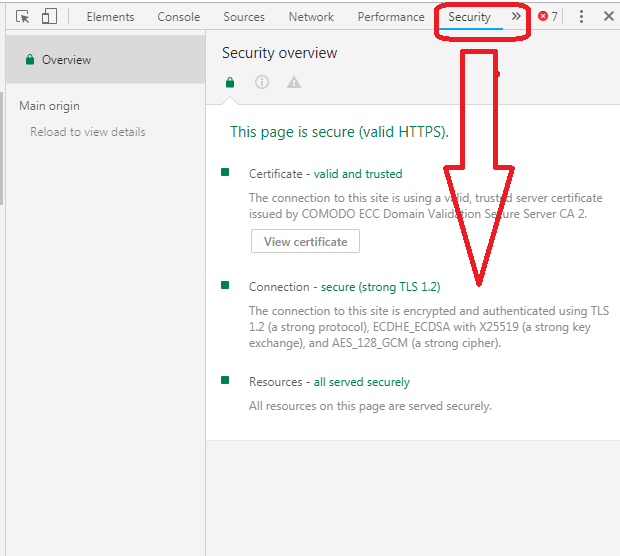
Here you need to press F12 and then choose Security option:

TLS Options


 All the best,

Sergey.

Friday, September 14, 2018

Retrieving Large Volume of Data via WEB Service in Acumatica

Hi Everyone,

Promised to write few posts about Web Services...

Getting large volume of data via Generic Inquiry Endpoint


Prerequisite - no knowledge about Acumatica platform whatsoever :), common sense and C# as a newbee.

First of all I would create a Generic Inquiry in Acumatica to get our data ready.
Please note that in order to get data without timeout errors, it must be arranged in batches.

Due to the fact that Acumatica does not handle Rowcount in GI's well enough, and we can't relay on it, so we would need to arrange our data in a table properly BY OURSELVES.

I tried few scenarios and it looks like getting data in batches of 1000 lines works the best way.
WEB service does not die out and process is not getting interrupted.

So, step by step now.

1. Please create a GI (Generic Inquiry) first. 

Silly example below:

Generic Inquiry in Acumatica

Please take note, I have added two special columns, Processing Batch and Maximum Batch Number.
This is to organize WEB service better, later you will see why do we need these two.
In short - it will minimize server calls and facilitate uninterrupted data flow.

2. Look at the design screen for this GI:


a) Data in the GI must be sorted by Processing Batch. In order to appear in the orderly manner for export. This is important!

b) Put some conditions in the GI so you have only that number of rows that you need. In my case getting 112 batches 1000 rows each, looks scary already... 112k records...

c) create underlying View or Table in the database to reflect Processing Batch and Maximum Batch numbers correctly. Correctly means have a Primary Key, don't make table too wide to facilitate speed of data extraction.

d) Convert that table into a Data Access Class (DAC) to then later use in the GI as a data source (hint - use my older blog to find how to convert view/table to DAC)

e) Format GI nicely so when you look at it, you experience proud and pleasure. :)

Regarding those special fields:

Processing Batch - is a number (int), representing a chunk of lines, by 1000 lines each.

Maximum Batch - is the last Processing Batch number (int).

Note: "Maximum Batch" number is the same for all rows, while "Processing Batch" number is changing for every thousand of rows.

In order to create such numbering in a table I used a process on SQL, in that update, LineNbr is just a Primary Key, you can use any other PK actually:

update MYTABLE set BatchNbr = s.BatchNbr, 
[MaxBatchNbr] = (select FLOOR(count(*)/1000)+1 from MYTABLE) 
from MYTABLE p 
inner join (select BatchNbr = FLOOR(ROW_NUMBER() OVER(ORDER BY LineNbr ASC)/1000)+1,LineNbr,CompanyID from MYTABLE) s 
on p.CompanyID = s.CompanyID and p.LineNbr = s.LineNbr

Again, you will see later, why we need these numbers to be IN an SQL TABLE itself.
Just accept it for now, ok.

3. Give that GI Access rights in Acumatica.

So the user we use for the web service, will be able to see it. Place it somewhere on your Site Map. Important, I call our GI CRMPAY

4. Create the Endpoint. 

Insert CRMPAY there. Add fields. Please note our special fields are there too:

Creating an Endpoint in Acumatica


5. Click VIEW ENDPOINT SERVICE button to get a link to the web service. 

Just copy the link to somewhere to keep, from the address bar, it will be something like: https://yourserver/yourendpointname/endpointversion?wdsl

6. Open your Visual Studio and create a new template

 Project type C# Console, give it a name, I called it BLOG.

Creating Visual Studio Project


7. In order to connect to your web service via https we will need to add some code to the project. 

Open Program.cs in your project and add this block to it:

Before:

Adding Project


After. What was added is in BLUE:

using System;
using System.Collections.Generic;
using System.Linq;
using System.Text;
using System.Net;
using System.Net.Security;
using System.Security.Cryptography.X509Certificates;

namespace BLOG
{
    class Program
    {
        static void Main(string[] args)
        {

            //This code is necessary only if you connect to the website
            //through the HTTPS connection and
            //you need to use custom validation of an SSL certificate
            //(for example, if the website uses a self-signed certificate).
            ServicePointManager.ServerCertificateValidationCallback += new
            RemoteCertificateValidationCallback(ValidateRemoteCertificate);
            
            using (DefaultSoapClient soapClient = new DefaultSoapClient())
            {
                //Log in to Acumatica ERP
                soapClient.Login
                (
                Properties.Settings.Default.UserName,
                Properties.Settings.Default.Password,
                Properties.Settings.Default.CompanyName,
                Properties.Settings.Default.Branch,
                null
                );
                try
                {
                    //You will add the integration code here
                    CRMDataRetriever.ExportCRMPayment(soapClient);
                }
                catch (Exception e)
                {
                 
                    Console.WriteLine(e);
                    Console.WriteLine();
                    Console.WriteLine("Press any key to continue");
                    Console.ReadLine();
                }
                finally
                {
                    //Log out from Acumatica ERP
                    soapClient.Logout();
                }
            }
        }

        //Callback, which is used to validate the certificate of
        //an Acumatica ERP website in an SSL conversation
        private static bool ValidateRemoteCertificate(object sender,
        X509Certificate cert, X509Chain chain, SslPolicyErrors policyErrors)
        {
            //For simplicity, this callback always returns true.
            //In a real integration application, you must check
            //an SSL certificate here.
            return true;
        }

        }
    }
}

8. You have noticed, Visual Studio prompting that some parts of the code above are not in yet:

 It is time to add web service to the Project. Click Add Service Reference:


Then indicate the link from Item 5. And give it a name. Click OK:


You may be prompted for a certificate mismatch, just accept it.

9. Add a namespace to the top portion of the Program block and you will immediately notice some errors are gone:


10. Do 1,2,3,4 as displayed. Just right click at your project then do 1,2,3,4 actually:


11. Now we should provide some security references here to get logged into Acumatica. So just add four items exactly as below, then save project:


12. And, we supposed to get left with the only Error. Will be fixing that one then:


13. Lets create that class CRMDataRetriever, where we are going to add the code:

a) Add the class:


b) Give it a name and Add:


c) Add into the top section of the class these two namespaces:

using BLOG.BLOGSERVICE;
using System.IO;

d) Insert code into the class. In my case code will retrieve the first Batch, then one by one subsequent:

using System;
using System.Collections.Generic;
using System.Linq;
using System.Text;
using BLOG.BLOGSERVICE;
using System.IO;

namespace BLOG
{
    class CRMDataRetriever
    {

        public static int? processBatchNbr = 0;

        //Retrieving the list of CRM Payment Items
        public static void ExportCRMPayment(DefaultSoapClient soapClient)
        {
            Console.WriteLine("Retrieving the list of Students...");
            
            var crmPaymentsToBeFound = soapClient.GetList(
                new CRMPAY

                {
                    //Specify return behavior - we are getting ALL the fields
                    ReturnBehavior = ReturnBehavior.All,
                    //Filter the items by the BatchNumber
                    BatchNbr = new IntSearch
                    {
                        Condition = IntCondition.Equal,
                        Value = 1
                    }
                });

            //I am writing it into a csv file
            using (StreamWriter file = new StreamWriter("CRMPayments.csv"))
            {

                //Add headers to the file
                file.WriteLine(
                "BatchNbr,LineNbr,StudentCRMID,Term,Year,CourseID,PaymentStatus,");

                //This is maximum batch to process and writing batch one
                foreach (CRMPAY crmPaymentsToBeFoun in crmPaymentsToBeFound)
                {
                    processBatchNbr = crmPaymentsToBeFoun.MaxBatchNbr.Value;


                    Console.WriteLine("Retrieving the First Record ...");

                    //Write the values for each item
                    file.WriteLine(string.Format("{0},{1},{2},{3},{4},{5},{6},",
                    crmPaymentsToBeFoun.BatchNbr.Value,
                    crmPaymentsToBeFoun.LineNbr.Value,
                    crmPaymentsToBeFoun.StudentCRMID.Value,
                    crmPaymentsToBeFoun.Term.Value,
                    crmPaymentsToBeFoun.Year.Value,
                    crmPaymentsToBeFoun.CourseID.Value,
                    crmPaymentsToBeFoun.PaymentStatus.Value));
                }

                while (processBatchNbr != 1)
                {
                    CRMPAY filter = new CRMPAY
                    {
                        BatchNbr = new IntSearch
                        {
                            Condition = IntCondition.Equal,
                            Value = processBatchNbr
                        },
                        ReturnBehavior = ReturnBehavior.All
                    };
                    Entity[] crmPayments = soapClient.GetList(filter);

                    processBatchNbr = processBatchNbr - 1;


                    //Write the values for each item
                    foreach (CRMPAY crmPayment in crmPayments)
                    {

                        file.WriteLine(string.Format("{0},{1},{2},{3},{4},{5},{6}",
                        crmPayment.BatchNbr.Value,
                        crmPayment.LineNbr.Value,
                        crmPayment.StudentCRMID.Value,
                        crmPayment.Term.Value,
                        crmPayment.Year.Value,
                        crmPayment.CourseID.Value,
                        crmPayment.PaymentStatus.Value));

                        Console.WriteLine("Subsequent Rercord written into a file...");

                    }
                }
            }

        }


    }

14. Please note every time we call web service, we know what will be the next batch from the processBatchNbr variable, which we set once we retrieved the first record. Within a batch of records we follow based on the BatchNbr field condition. We do not do any calls to the web service which are redundant or unnecessary.

15. In order for WEB service to login correctly we have to enable cookies in the project config file. We should do it manually. 

a) Open app.config file in the notepad


b) Modify it slightly to allow cookies at the areas highlighted. Save. Close:


16. Build the project, get BLOG.exe file at the bin/Debug folder and run it.

Enjoy csv file getting produced and endless messagess popping up at the console :)


All the best,
Sergey.

P.S. Next blog will be about using OData to get the BIG DATA via WEB service of course...

Wednesday, September 12, 2018

Acumatica Notification. How to Pass Empty Field Condition.

Hi Guys,

Today will be a short one.

Just realized Acumatica is not very good at handling conditions at Notifications screen.

When you need to Notify someone you create Automation Notification with the exact condition of when to do it.

Potentially, there could be a case when you wish to call a notification ONLY when certain field is Empty. So, how?

It is empty, does not mean NULL, because field may be not nullable, so IsNull will not work.
How? ='' Does not work..... Any other ideas?

After 30 mins of various tries found a solution.

Acumatica Notification Screen

In my case TnC field supposed to be empty. So we use:

Start With in the Condition column, AND we just put ONE single SPACE into Value field.

You cant see space on the picture but I tell you it is there....

OMG.....

Best,
Sergey.

Sunday, September 9, 2018

Need an Acumatica Developer in Singapore.

Hi Everyone;

IF

You are a good developer in Acumatica framework
AND
Have 3 or more years of experience in developing Acumatica screens and functions
AND
(I know you OR (heard about you from Acumatica development team AND what I heard was positive))
AND
You are willing to work in Singapore

THEN
Please send me an email (you should know it) or just reply here with the request.

ELSE
Thank you, Sergey.

Automatic Updates and Apply Updates screen Issues

Hi Guys,

Today I have faced an issue for one of my clients when tried to publish the customization.
I was trying to put the server in the Maintenance Mode.

As you aware, there is an option in Acumatica to do the auto update.
By default it is partially on, and pointing to the acumatica server:


Please note, even if you did not check "Check for Updates" option,
EVERY TIME YOU OPEN THE SCREEN IT GOES TO http://update.acumatica.com JUST TO VERIFY THE SERVER IS ON.

So what happened today is that Acumatica update server was down and it caused me to wait XX seconds till the timeout to see this:


In short, it is highly recommended, if you do not use the Auto Update feature, please do a complete cleanup till you have it like this:
In this case every time you need to put the server in Maintenance Mode, there will be no timeout, as system will know there is no update server, so no need to ping it:


No more error, just  a warning and no delays.

All the best,
Sergey.

Tuesday, April 17, 2018

The Learning Lab - Acumatica Customer of the Year

Dear Reader!

I am Proud to announce:

The biggest Private Primary and Secondary Learning Provider in Singapore - The Learning Lab just achieved the Customer of the Year award at Acumatica Asia Roadshow 2018 !

Super Powerfull Team of Professionals

Together with Info Cloud Asia - leading consulting firm in Singapore, TLL achieved flawless implementation and integrated Acumatica with the CRM front end, Attendance Tracking Security system as well as Claim Tracking.

Congratulations - it was an example of great team work!

All the best!

Thursday, July 27, 2017

Acumatica is on Gartner Magic Quadrant

Congratulations Everyone!

We have finally made it, now Acumatica is on Gartner.
You request for a copy here:   Request Gartner Report


At the same time, PC Magazine made us top brands. I can not believe it :)


Full article here:

PC Magazine 2017

All the best,
Sergey.

Friday, August 7, 2015

Urgently Require Acumatica Consultant and Support Engineer in Singapore

Hi Guys,

Please let me know if anyone from Singapore is keen to work as a consultant and support engineer.

Location: Singapore

I am really shorthanded and looking for a bright candidate. Please drop me an e-mail if interested.

Thanks,

Sergey.

P.S. Agents/Hiring Agencies please do not bother, I am looking for direct candidates.

Tuesday, June 9, 2015

Adding Verification Logic to a Field

Hi Guys,

There is a common customization task to add some piece of business logic to a field.
Here is the example of adding verification to a Journal Transaction screen.

In short, for certain Accounts (Expense and Income) I will need to check that user entered Customer or Vendor into Journal Transaction screen. Balance Sheet accounts should be skipped.

Here is how it supposed to look like:


Thanks to a reworked Acumatica API documentation, it was not a Rocket Science to develop a simple piece of code below that covers this logic:


Please take note of:

sender.RaiseExceptionHandling<GLTran.referenceID>(e.Row, row.ReferenceID, new PXSetPropertyException(ErrorMessages.FieldIsEmpty , PXErrorLevel.RowError, typeof(GLTran.referenceID).Name));

That identifies where exactly to show a red cross Error.

All the Best,

Sergey.

Wednesday, August 6, 2014

Web Services training in Singapore

Dear Team,

Thanks to an overwhelming demand, we are organising a 
Two Days session for Web Services Integration training to be held in Singapore.

Our Platform Evangelist, Ruslan Devyatko will be in Singapore 
Monday and Tuesday 29,30 September 2014.
Developers and functional consultants are cordially welcome.

Prerequisites for the training will be:
  1. Decent Acumatica Functionality Knowledge. 
  2. .NET Platform Knowledge. 
  3. Acumatica Framework specific knowledge. 
  4. Ability to Design Screens in C# using Acumatica Platform.
  5. Being Acumatica Partner. Of course :) 
Please book it in advance, there are only 30 seats available. 

We make it FOC this time. Hurry up.

All the best,
Sergey.