Showing posts with label Hardware. Show all posts

Wednesday, August 7, 2019

Acumatica Page Missing under Google Chrome Browser

Hi Everyone,

This one is a hot topic, recently chrome team released some changes to the Chrome Browser, so that some PAGES could get missing.

You still see Menu, still see screen list but the page itself is gone, blank, empty.

How to fix?

Just change settings in the Chrome:

1. Type chrome://flags/ in the browser address bar and press Enter.


2. You should see the list of options:
3.Enable Temporarily Unexpire M90 flags - Make it ENABLE, then restart browser:


4. Repeat steps 1 and 2. In the search bar type Lazy Frame or just Lazy:


5. Under Enable lazy frame loading choose Disabled:


6. Press Relaunch Now at the right bottom corner:


That is it.
Thank you,
Sergey.

Monday, May 5, 2014

Access to SQL Server by SQL Query Analyzer or Management Studio.

Hi Everyone,

As Acumatica runs on SQL server, we may need, time to time to access our Database by Management Studio. And there could be connectivity issue if we try it, just out of the box...

Most of the times, since we are on the cloud, the SQL server is somewhere outside, not in our office. To access it, we need to follow three simple steps:

1. Open up firewall on SQL server side for the port used by SQL Server for listening.
2. Make sure we specified correct port on the SQL server properties.
3. Make sure on the CLIENT side we choose the same port to access the server.

First.

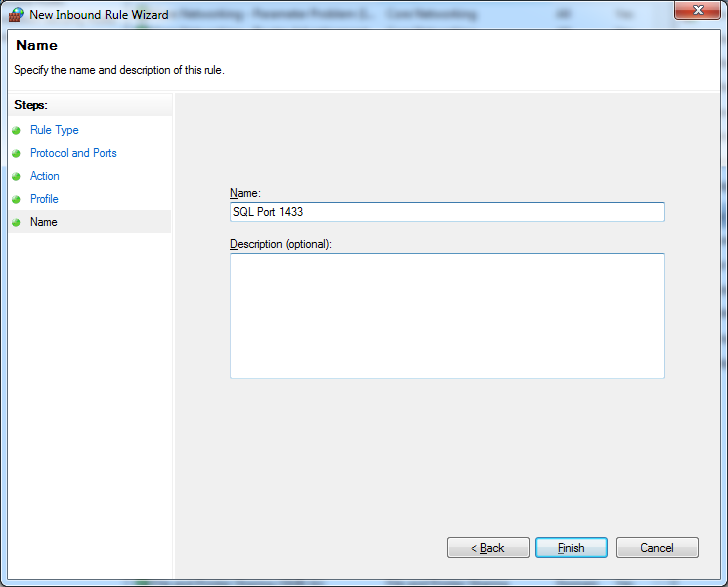
Open the firewall for SQL port 1433 for Inbound Connections. This need to be done AT THE SERVER SIDE. So please Remote to the server then open this up:


Click at the Inbound Rules, Add new rule, specify that it is for the PORT type of the rule. Then add TCP port 1433 to it.
Well next you choose network profile from where you allow to open it up. Most of the time Domain is enough.

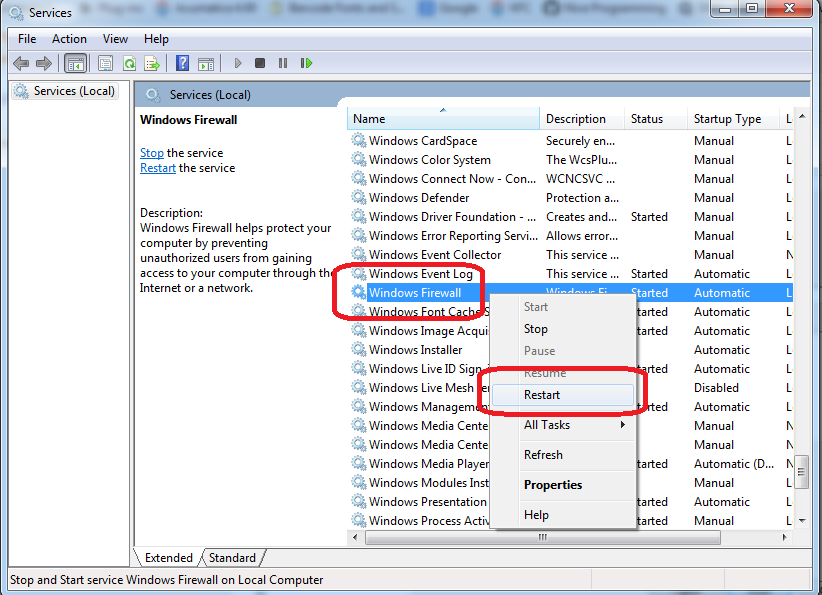
You may need to restart Firewall Service on the server for the rule to take force.


Second. 

Let's open the port for listening at the SQL server side. Here is the hint, if we use NAMED INSTANCE for the SQL server, port on SQL side will be assigned DYNAMICALLY, which is obviously NOT what we want. We have to fix it to be STATIC. Most of the times, historically, we used 1433 port. So let it be 1433 for my example. It is done Here:


Next would be to press right click on TCP/IP protocol, choose properties, then you will see list of IPs.
Scroll down to IPAll or choose the one that your server is configured and:
A. Erase the entry at the Dynamic Port
B. Place 1433 at the TCP Port field
Result:
Click Apply. Then Restart the SQL server.

Third.

Funny thing but this seems to be the most important step. On the client side, when you call SQL Management Studio, please use the following syntax. You NEED to indicate the port at the server IP address :) :


Please take note on that comma port number :)
The thing is, even if you indicated the dynamic off on the SQL, client still thinks its own ways when talking to the SQL server.

All the best,

Sergey.

Sunday, December 29, 2013

Timeouts. Keeping Site Alive or Safe ?

Hi Everyone,

In this post I would like to touch options that affect session timeouts.
IIS together with our Application has multiple settings to control it.

First of all, there is a universal setting in our web.config file, that controls the appearance of the Reminder Bell on the tool bar. Once it is active, system will auto check notifications and reminders from the application regularly. Here is the icon, that will appear:


Settings controlled by web.config entries


ReminderVisible makes bell appear on the screen.
ReminderRequestPeriod controls how often web page will ping the server on active reminders status.
And ReminderActiveMode will either switch auto ping on or off. By default it is off.

Well, web.config file you can find at the root folder of your Acumatica ERP web site.

With Reminder activated there is no need to control other settings on IIS as auto heart beat will keep session always open, your browser will never disconnect from the server.

There is one problem though.

You may wish the browser to auto close session if say you go to gave lunch or just forgot to log out from Acumatica. In this case, Reminder will not be a good option.

Second option is to keep Reminder off, and configure IIS instead.
There are few options to tune.

1. Web site itself controls the connection timeout. If you open IIS->WebSite->Advanced Settings->Connection Limits there is a setting Connection Timeout (seconds).


As per documentation it:

Specifies the time (in seconds) that IIS waits before it disconnects a connection that is considered inactive. Connections can be considered inactive for the following reasons:
  • The HTTP.sys Timer_ConnectionIdle timer expired. The connection expired and remains idle.
  • The HTTP.sys Timer_EntityBody timer expired. The connection expired before the request entity body arrived. When it is clear that a request has an entity body, the HTTP API turns on the Timer_EntityBody timer. Initially, the limit of this timer is set to the connectionTimeout value. Each time another data indication is received on this request, the HTTP API resets the timer to give the connection more minutes as specified in the connectionTimeout attribute.
  • The HTTP.sys Timer_AppPool timer expired. The connection expired because a request waited too long in an application pool queue for a server application to dequeue and process it. This time-out duration is connectionTimeout. 
In practical aspect for us it means, if for example, you created a report or inquiry that uses view in the database, and the first record that will come out of this view will come with delay longer than the above settings - session will get disconnected.

So this settings is crucial, especially if you plan to write your own heavy reports or BI tools.

Recommended setting here purely depends on the longest time you expect SQL server to return you the result set.

2. Login Timeout. We control from web config how long system will wait for you to login on the login screen
 <formsAuth loginUrl="Frames/Login.aspx" timeout="60" />

3. Run time execution timeout
 <httpRuntime executionTimeout="300" requestValidationMode="2.0" maxRequestLength="1048576" />

As per documentation
The ExecutionTimeout property indicates the maximum number of seconds a request is allowed to execute before being automatically shut down by ASP.NET.

4. Session State timeout, which you can increment.
<sessionState cookieless="UseCookies" mode="Custom" customProvider="PXSessionStateStore" timeout="60">
        <providers>
          <remove name="PXSessionStateStore" />
          <add name="PXSessionStateStore" type="PX.Data.PXSessionStateStore, PX.Data" ignoreUrl="~/Frames/Menu.aspx,~/Frames/GetFile.ashx" />
        </providers>
      </sessionState>

5. Application pool idle timeout that can affect your session data if left for too long


This one can be set to 1440 which is 24 hours.

Please make sure you restarted IIS if any of these parameters changed.

All the best,

Sergey.

Wednesday, August 21, 2013

Application Pool Settings. Make Sure its 64 bit.

Hi Guys,

Just wanted to share application pool settings, that we should set in order to allocate memory better by WEB server.

Assuming we use 64 bit machine to host our IIS server, we may still choose 32 bit or 64 bit compatibility for Application Pool.

32 bit mode allows us to debug the process, therefore we could forget to switch it back to 64 bit mode after debug process it complete and we go for production.

How can we identify that Web Site is using 32 bit mode? Just look at the task manager:


As long as you see x32 at the end of the IIS Worker process name - it runs in 32 bit mode.

Form IIS you can find this option under Application Pool settings


What may happen on production environment when it runs on 32 bit mode, system may consume all memory, and due to 32 bit mode it will not be able to scale it above 2G/4G. And what will happen next:


In order to prevent it from happening, we should switch Application Pool BACK to 64 bit mode:


All the best,

Sergey.

Saturday, August 10, 2013

Choosing the right Edition. Number of CPU cores demystified.

Hi Everyone,

Sure you've seen this story.

Prospect: How to convince my boss (CIO etc.) that we are buying the right edition of Acumatica Cloud ERP?
Sales guy: Errr, mmmm, well... you should trust me...

Prospect: Ok, just explain why do we need 4 CPU not 2? We only have 3 companies, we can get 2 CPU, right? Why do you offer us 4 CPU license????
Sales guy: Errr, mmmm, well... where's the hell is the tech guy...?

So, here is a helping hand to our sales team.

What I did - took one of our big customers and analyzed the database transactions, users and payload.
It is a Departmental Edition with 2 CPUs for WEB server, 2CPU for SQL server, 4GB shared RAM. Sitting on a VERY FAST Hyper-V virtual machine (that is sharing SQL) and supplied with SSD hard drives. So we can say these CPU are ideal CPU for calculation of the capacity limits. :)

If you are not interested in technical part, just scroll till the big font area, then later just copy paste pictures to your PPTs when needed, especially the skyscrapers one.

The rest of the team can stay ;)

First of all, what WEB server CPU does at Acumatica  - it processes Business Logic.

If it does not ring the bell... CPU is processing what you have entered into the screen, then validating that input, calculating some formulas and finally sending data back to your browser or to the SQL database.

Analogue, back to 60th, CPU is - the engine in your electrical "typewriting machine", and if it runs slow, even when you typeveryfast it willnotprocess the data, but will either queue them and type after you finished pressing buttons (good typewrites) or simply jam the letters :) (lousy typo). Well, of course Acumatica is a good one, it never jams! :)

Back to the test, here is the daily transactional load for the past two years.


I can see clear peeks at some days up to 50,000 transaction lines per day. While the other days it can be less that 100. So our CPU must be able to withstand these peaks. 50,000 per day could be over 8 hours equally or just in 1 minute :). SO these aggregated data are nice looking but can't determine what CPU actually does and how powerful it should be.

Lets take a closer look at transactions per minute, to see actual peaks.


Data became more realistic, at the day highlighted in red we had some peaks when users entered 6000 to 8000 transaction lines per minute. Lets take a closer look at that specific day.


And now lets put the first peak under the microscope.

Here we can see that Acumatica processes data with 5,000 records per minute rate, placing 5000+5000+4000+1000 into the queue, within 3 minutes. So the actual processing rate would be something around 15,000 transaction lines per 3 minutes, or about 5,000 transaction lines per minute, when data supplied in Large chunks.

At the same time, we can see that at 9:48PM system processed 8,000 records at peak. At that time amount of data was smaller or, may be CPU was less loaded with other non transactional tasks.

Anyway, for us it is a very good indication, Acumatica can process 5,000 to 8,000 transaction lines (rows) per minute. For 2 CPUs it will be 2,500 to 4,000 transaction lines per CPU per minute. Here we can break it down to per second and will get gold:

One CPU can process 40 to 65 transaction lines per second at max.

Of course I assume this is a dedicated CPU core.
It can also be Virtual, but Server will EAT IT UP FULL om-nom at such peak loads. So it will become Virtual ate Real. :)

One of the examples could be Distribution based company processing large volume of Sales every day. So what it means to this company: if sales order is around 20 lines each, then:

Single CPU can process 2 - 3 Sales order per second. Max. 

Lets now think about users prospective, how many users can work in the system.
Answer is - This really - DOES NOT MATTER :) The only thing that matters is how many transactions these users do.

But, anyway, going to my example, here is the number of NAMED USERS worked with Acumatica during company life. We do not license by those, but I was just interested how many users were creating such a traffic jam :)


Well we can see that at peaks there where 40-45 physical persons in the office :) using Acumatica. Very good. We can clearly see the weekends :). Notice Implementation stage :). And then Go-live and after go-live. As well as steady operations part later. Nice... Looks like a comb...

Another metric we can use. Number or Operations. Which is, log in, open screen or report. I am not talking about operations within the screen which can be treated as transaction, but, well, errr, mmmm. :)
Operations like JUST OPEN SCREEN OR REPORT OR HELP etc.


What I see here - is how difficult was 2012 Year Closing process :) And when team went on holiday after it ;) Look at it in details, see how difficult it was. Below are Operations Per Day.


Some days were 6,000 screen openings and logins PER DAY. By just 30 people. 200 screens were opened by a SINGLE person per day in average. Think about it...

Conclusion is:

Number of Users DOES NOT MATTER AT ALL, the only thing that is important NUMBER OF TRANSACTIONS at its PEAK.              PER SECOND.

Single CPU can process 40 to 65 TRANSACTION LINES per second.

Single CPU can process 2-3 Sales Order 20 lines each per second. 

For distribution based business, translated to Editions it will be:
Departmental = 4-6 SO per second,
Divisional 8-12 SO per second,
Enterprise 16-24 SO per second.

For other industries just take peak load, calculate number of transaction lines per second, compare with what mentioned above.

Well, all this in assumption that you will not design other CPU hungry logic on reports or BI.
With more data available for analysis from our customers I will be able to estimate the impact of it as well.

Cheers,

Sergey.

Monday, June 25, 2012

Hardware Upgrade? Compatibility Issues?


Hi Guys,

Recently I got a call from one of the legacy ERP system (Solomon IV) customer. They are still using software released in late nineties. It is no longer supported by Solomon or Microsoft.

On the client side they are using Windows XP. Solomon IV works fine with XP. But once we upgrade the PC, operating system will also get replaced. Most of the current laptops are supplied with Windows 7, and option to run XP in virtual mode seemed not to be the best.

Really, what are they upgrading their PCs for, to run a slow VM with XP???

So the only path for them seemed to be an upgrade to the latest version of that Solomon software line... Migrate all the customizations to that new version. Reinstall the client software on their PCs. Retrain the people to use new version... Looks like a full scale upgrade with a small implementation attached.

But what will happen in 5 years’ time, when the current version will age and require replacement due to hardware upgrade? Should we invest in customizations upgrade and migration, reinstallation etc.? Again? Just because of the Hardware Upgrade?

We proposed them to think about upgrade to Acumatica instead.

WEB based system do not require any specific compatibility with the hardware. And when you decided to buy new gadget, Acumatica will start working on it right away.

It does not require local client installation; as long as you have a WEB browser you can use it.

Cloud deployed ERP would be even better solution, not only clients became independent from Hardware Upgrade issues but the server as well.

They are thinking about it and if it turns to be a win, I will let you know.

All the best,

Sergey.