Showing posts with label Report Designer. Show all posts

Monday, August 3, 2020

Excel Based Reporting. Velixo vs GI

Hi Everyone,

Please note a bright example of how OData in Acumatica can be used by Excel based reports.
 
This demo also discusses a new Excel feature Dynamic Array, that is something worth to look at.

So, please take a look at Velixo, which is Excel based Acumatica tailored reporter (and not only).

They have recently added Single Sign On (SSO).

Have fun 


All the Best,
Sergey.

Wednesday, September 13, 2017

Amount to Words conversion at Acumatica Reports

Hi Everyone,

As we do not yet have Amount to Words function inside our top notch Report Designer, let me share one created to print cheques from AR module.

Same logic applies and can be reused anywhere inside Acumatica Report Designer. I did it for up to 10,000 amount, but you can easily extend it upwards.

1. First of all lets create few Variables on top of the Reporting Group where we are going to use A2W conversion.

a) AmountCents - that will be total amount converted to Cents. I used ARPayment.CuryOrigDocAmt but you can use ANY other numeric field as a SOURCE
b) AmtThousands - that will be just how many thousands we have
c) AmtHundreds - displays number of hundreds only
d) AmtOnes - Ones only
c) AmtCents - Cents only


Below are all the formulae:

AmountCents:
=CInt([ARPayment.CuryOrigDocAmt]*100)

AmtThousands:
=Floor($AmountCents/100000)

AmtHundreds:
=Floor(($AmountCents-$AmtThousands*100000)/10000)

AmtTens:
=Floor(($AmountCents-$AmtThousands*100000-$AmtHundreds*10000)/1000)

AmtOnes:
=Floor(($AmountCents-$AmtThousands*100000-$AmtHundreds*10000-$AmtTens*1000)/100)

AmtCents:
=CInt(Right(CStr($AmountCents),2))

2. Secondly add quite long formula into the field itself, here it is:

Your Field: =Iif($AmtThousands<>0,Switch($AmtThousands=10,'Ten',$AmtThousands=9,'Nine',$AmtThousands=8,'Eight',$AmtThousands=7,'Seven',$AmtThousands=6,'Six',$AmtThousands=5,'Five',$AmtThousands=4,'Four',$AmtThousands=3,'Three',$AmtThousands=2,'Two',$AmtThousands=1,'One') + ' Thousand ','') + Iif($AmtHundreds<>0,Switch($AmtHundreds=9,'Nine',$AmtHundreds=8,'Eight',$AmtHundreds=7,'Seven',$AmtHundreds=6,'Six',$AmtHundreds=5,'Five',$AmtHundreds=4,'Four',$AmtHundreds=3,'Three',$AmtHundreds=2,'Two',$AmtHundreds=1,'One') + ' Hundred ','') + Iif($AmtTens<>0,Switch($AmtTens=9,'Ninety',$AmtTens=8,'Eighty',$AmtTens=7,'Seventy',$AmtTens=6,'Sixty',$AmtTens=5,'Fifty',$AmtTens=4,'Forty',$AmtTens=3,'Thirty',$AmtTens=2,'Twenty',$AmtTens=1,'') + ' ','') + Iif($AmtTens=1,Switch($AmtOnes=9,'Nineteen',$AmtOnes=8,'Eighteen',$AmtOnes=7,'Seventeen',$AmtOnes=6,'Sixteen',$AmtOnes=5,'Fifteen',$AmtOnes=4,'Fourteen',$AmtOnes=3,'Thirteen',$AmtOnes=2,'Twelve',$AmtOnes=1,'Eleven',$AmtOnes=0,'Ten') + ' ','') + Iif($AmtTens<>1,Switch($AmtOnes=9,'Nine',$AmtOnes=8,'Eight',$AmtOnes=7,'Seven',$AmtOnes=6,'Six',$AmtOnes=5,'Five',$AmtOnes=4,'Four',$AmtOnes=3,'Three',$AmtOnes=2,'Two',$AmtOnes=1,'One',$AmtOnes=0,''),'') + Iif($AmountCents=$AmtCents,'Zero','') + Iif($AmtCents=0,' Only',' and ' + CStr($AmtCents) + '¢ Only')

3. Let see what we got:

It works only up to 10k, but if you wish, you can add in front of the formula further parsing.

All the Best,
Sergey.

Wednesday, November 11, 2015

Reporting - Excel simple format support.

Hi Guys,

As you aware, Export in Excel Simple format is deprecated.
It is not available from version 5 onwards.

What you are not aware, probably.
For those who were using it in earlier versions, please take note.

If you are going to open and edit your old version report with the new version Report Designer.
It is going to kill your Excel Simple Export settings irreversibly.

Therefore, please make sure using Old Report designer to correct/edit Older versions reports.

Other words, there is no compatibility in the future versions of report designer with the older versions of the software. You can not edit and save reports of version 3.00 by report designer from version 5.00
It will spoil the report.

All the best,
Sergey.

Wednesday, February 20, 2013

Issues with Google Chrome embedded PDF viewer. Use workaround till Chromium team fixes it.

Hi Everyone,

Recently some of our customer started reporting an issue with Google Chrome, while printing reports it cuts the page and does not display details. Also it may hide images embedded into PDF report format. IE and Mozilla FireFox works perfectly fine.

We have checked with Chromium team, found that this issue is a known bug and they work on it. But until the fix is deployed you can use a workaround.

Main sense is to disable built in PDF Viewer and replace it with external plug-in from Adobe. System will still open PDF inside the browser, but without any glitches.

Chromium team, please hurry up :)

Ok, the workaround is to install Adobe PDF Reader on your PC.

Then, once you confirmed you are running the latest Chrome and Adobe Reader, and if issue is still there please try this:

1. Open Chrome and type this into address bar:  chrome://plugins/
It will open plugin page.

2. You should see a list of all the Plug-ins installed for Chrome, please find one called Chrome PDF Viewer plugin, it may look like this:


3. Please make this plugin grayed out (disabled) by clicking on Disable link:


4. After that it should show you this


5. It will now save you a file locally on your PC for viewing by ordinary PDF reader.

If saving a file locally is not preferred option you may do it another way.

1. Install Adobe PDF Reader. Open Chrome and type this into address bar:  chrome://plugins/
2. Find the Adobe Reader plugin.


3. And make it Enabled


4. Please note that Built In Chrome PDF Viewer should be disabled in this configuration:

All the best,

Sergey.

Tuesday, January 8, 2013

Multiple Column Report. For Example - Payment Remittance.

Here is a method of adding fixed number of columns into a report. In my case Additional Remittance Form report, which is often printed after or when check is issued.

Sometimes we need to list all the Bills, the check is paid for.
In certain format. In my case in 3 (Three) columns.

For example for check 00100002 we have 4 Bills attached:


Well, I know, it will be good to show how much exactly each bill is paid for, but this is minor.
Lets achieve first multiple column printing.

First of all, I would need a View in a database, that will return 3 Bill Numbers in a row, in a sequential order.
If I used standard select 

select p.RefNbr,i.CompanyID, i.DocType, i.RefNbr 
from APPayment p inner join APAdjust a on p.CompanyID = a.CompanyID and
p.DocType = a.AdjgDocType and p.RefNbr = a.AdjgRefNbr
inner join APInvoice i on p.CompanyID = i.CompanyID and a.AdjdDocType = i.DocType and
i.RefNbr = a.AdjdRefNbr 

It will just list me all the Payments from AP with corresponding Bills:
RefNbr CompanyID DocType RefNbr
--------------- ----------- ------- ---------------
000001          2           INV     038630
000002          2           INV     038631
000003          2           INV     038632
000005          2           ACR     038652
000005          2           INV     038648
000005          2           INV     038649
000005          2           INV     038650
000004          2           QCK     000004

Well, it shows for Check 000005 we have 3 Bills and 1 Credit Adjustment. This relates to my example above with what we actually want to achieve.

Second step would be - we need to add a numeric counter, to count the order of those rows. In my case from 1 to 4 for highlighted rows. Will also be good to add a type of Check, as we may have different.
Lets rework our view:

select p.RefNbr as PayNbr, p.DocType, i.CompanyID as CompanyID, i.DocType as InvDocType, i.RefNbr as InvRefNbr
from APPayment p inner join APAdjust a on p.CompanyID = a.CompanyID and
p.DocType = a.AdjgDocType and p.RefNbr = a.AdjgRefNbr
inner join APInvoice i on p.CompanyID = i.CompanyID and a.AdjdDocType = i.DocType and
i.RefNbr = a.AdjdRefNbr
order by i.RefNbr


PayNbr          DocType CompanyID   InvDocType InvRefNbr

--------------- ------- ----------- ---------- ---------------

000004          QCK     2           QCK        000004

000001          CHK     2           INV        038630
000002          CHK     2           INV        038631
000003          CHK     2           INV        038632
000005          CHK     2           INV        038648
000005          CHK     2           INV        038649
000005          CHK     2           INV        038650
000005          CHK     2           ACR        038652

Ok, now lets add a counter, generic rule will be to create a special RowNumber field:

SELECT Bill Number, other fields, Check Number 
(SELECT COUNT(*) FROM table t2 WHERE t2.Bill Number <= t.Bill Number and t2.Check Number = t.Check Number) AS RowNumber
FROM Table t
ORDER BY Bill Number

Here is what our view will become:

select p.RefNbr as PayNbr, p.DocType, i.CompanyID as CompanyID, i.DocType as InvDocType, i.RefNbr as InvRefNbr, 
(SELECT COUNT(*) FROM APPayment p2 inner join APAdjust a2 on p2.CompanyID = a2.CompanyID and
p2.DocType = a2.AdjgDocType and p2.RefNbr = a2.AdjgRefNbr
inner join APInvoice i2 on p2.CompanyID = i2.CompanyID and a2.AdjdDocType = i2.DocType and
i2.RefNbr = a2.AdjdRefNbr WHERE i2.RefNbr <= i.RefNbr AND p2.RefNbr = p.RefNbr and a2.AdjgDocType = a.AdjgDocType) AS rownumber
from APPayment p inner join APAdjust a on p.CompanyID = a.CompanyID and
p.DocType = a.AdjgDocType and p.RefNbr = a.AdjgRefNbr
inner join APInvoice i on p.CompanyID = i.CompanyID and a.AdjdDocType = i.DocType and
i.RefNbr = a.AdjdRefNbr
order by i.RefNbr

PayNbr Type CompanyID   InvDocType InvRefNbr  rownumber
--------------- ------- ----------- ---------- --------------- -----------
000004          QCK     2           QCK      000004          1
000001          CHK     2           INV        038630         1
000002          CHK     2           INV        038631        1
000003          CHK     2           INV        038632         1
000005          CHK     2           INV        038648         1
000005          CHK     2           INV        038649         2
000005          CHK     2           INV        038650        3
000005          CHK     2           ACR       038652        4

Here we have a number 1 to 4. Now we have more complicated task - to arrange these Invoice Numbers into 3 columns, within a single row. To make it simpler, I assume that no check will pay for more than 3000 invoices. This is realistic example. Formula to describe all the sequential numbers that will fall into respective columns will be
1. Column One: N1 = a*3-2. Where N1 are numbers to fall into column 1, and a - is the number of row.
For example for row 1 number should be 1, for row 2 number would be 4, because number 2 will go for column 2, and number 3 will go for column 3. Same way for columns 2 and 3.
2. Column Two: N2 = a*3-1
3. Column Three: N3 = a*3
Based on above, invoice 038648 should go to row 1 column 1, 038649 to row 1 column 2, 038650 to row 1 column 3 and last 038652 should jump to row 2 and column 1. The other words, sequential number 1 corresponds col 1 row 1, 2 = col2 row 1, 3= col3 row 1 and 4 = col1 row 2.

To help me to arrange this logic within a view, I will create 3 tables, each with sequential numbers. And each table will have only numbers that corresponds to columns 1, 2 and 3 respectively.

CREATE TABLE [dbo].[XSW_Column1_Of3](
[Counting] [int] NOT NULL
) ON [PRIMARY]
GO

CREATE TABLE [dbo].[XSW_Column2_Of3](
[Counting] [int] NOT NULL
) ON [PRIMARY]
GO

CREATE TABLE [dbo].[XSW_Column3_Of3](
[Counting] [int] NOT NULL
) ON [PRIMARY]
GO

Now I will populate them using this script, again, its in assumption that we will have up to 3,000 bills per check:

declare @i as int
set @i = 1
while @i <= 1000
BEGIN
insert XSW_Column1_Of3
SELECT @i*3-2
insert XSW_Column2_Of3
select @i*3-1
insert XSW_Column3_Of3
select @i*3
SELECT @i = @i +1
END

Now lets create a view with Raw data for all 3 columns:


Create VIEW XSW_APRemitRaw
AS
SELECT r.PayNbr, r.PayDoc, r.CompanyID, ROUND((r.rownumber+2)/3,0) as RowNumber, 
InvRefNbr1 = CASE WHEN r.rownumber in (select Counting from XSW_Column1_Of3) THEN r.InvRefNbr ELSE '' END, 
InvRefNbr2 = CASE WHEN r.rownumber in (select Counting from XSW_Column2_Of3) THEN r.InvRefNbr ELSE '' END, 
InvRefNbr3 = CASE WHEN r.rownumber in (select Counting from XSW_Column3_Of3) THEN r.InvRefNbr ELSE '' END
FROM (select p.RefNbr as PayNbr, p.DocType as PayDoc, i.CompanyID as CompanyID, i.DocType as InvDocType, i.RefNbr as InvRefNbr, 
(SELECT COUNT(*) FROM APPayment p2 inner join APAdjust a2 on p2.CompanyID = a2.CompanyID and
p2.DocType = a2.AdjgDocType and p2.RefNbr = a2.AdjgRefNbr
inner join APInvoice i2 on p2.CompanyID = i2.CompanyID and a2.AdjdDocType = i2.DocType and
i2.RefNbr = a2.AdjdRefNbr WHERE i2.RefNbr <= i.RefNbr AND p2.RefNbr = p.RefNbr and a2.AdjgDocType = a.AdjgDocType) AS rownumber
from APPayment p inner join APAdjust a on p.CompanyID = a.CompanyID and
p.DocType = a.AdjgDocType and p.RefNbr = a.AdjgRefNbr
inner join APInvoice i on p.CompanyID = i.CompanyID and a.AdjdDocType = i.DocType and
i.RefNbr = a.AdjdRefNbr) r


PayNb PayDoc CompanyID RowNumber   InvRefNbr1      InvRefNbr2      InvRefNbr3
--------------- ------ ----------- ----------- --------------- --------------- ---------------
000001          CHK    2           1           038630                          
000002          CHK    2           1           038631                          
000003          CHK    2           1           038632                          
000005          CHK    2           2           038652                          
000005          CHK    2           1           038648                          
000005          CHK    2           1                           038649          
000005          CHK    2           1                                           038650
000004          QCK    2           1           000004                          

Well I modified a RowNumber a little bit to show not Sequential number but Actual Row by adding ROUND((r.rownumber+2)/3,0) as RowNumber  statement. I need it for aggregation.

Now final step, lets aggregate the view into single row.

Create VIEW XSW_APRemittance
AS
select PayNbr, PayDoc, CompanyID, RowNumber, MAX(InvRefNbr1) as Inv1, MAX(InvRefNbr2) as Inv2, MAX(InvRefNbr3) as Inv3 
from XSW_APRemitRaw
group by PayNbr, PayDoc, CompanyID, RowNumber
go

PayNbr   PayDoc CompanyID   RowNumber   Inv1  Inv2            Inv3
--------------- ------ ----------- ----------- --------------- --------------- ---------------
000001          CHK    2           1           038630                          
000002          CHK    2           1           038631                          
000003          CHK    2           1           038632                          
000004          QCK    2           1           000004                          
000005          CHK    2           1           038648          038649          038650
000005          CHK    2           2           038652                          

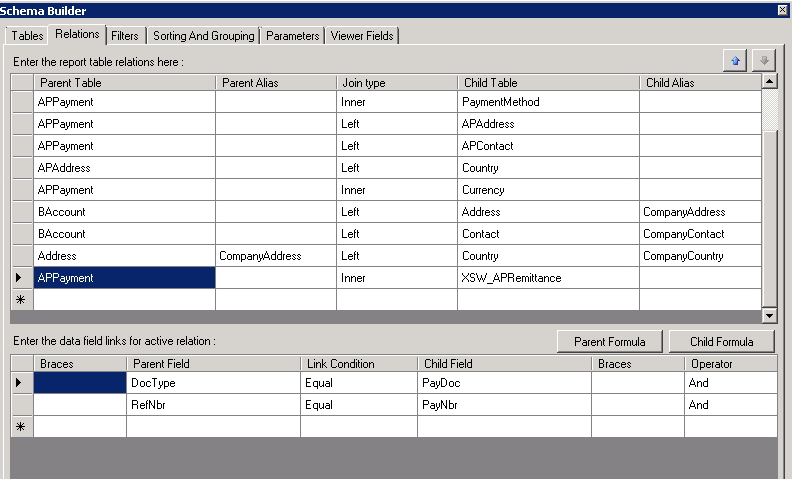
This is exactly what we need to add to report. Well I will skip adding a view to report, please refer to my earlier blogs for that. Just mention, Key fields should be PayNbr, PayDoc and RowNumber.


Added a group
And then added 3 fields to report

That is all,
Best Regards,
Sergey.

Saturday, June 30, 2012

Quick Way to Troubleshoot a Report.

Hi Everyone,

Report is usually connected to one or many data sources, in Acumatica they are represented by Data Access Classes (DAC). Sometimes DAC is not really what we have in SQL database. DAC may have calculated synthetic fields, added during its [long] life. DAC may also have additional fields from other tables.

For example: FABookHistory data access class has field CreatedByID which corresponds to field in its main table from SQL DB, but also it has field CreatedByID_Description, which is coming from joined table with user names.


And all of us, are professionals with SQL of course. :)
If something goes wrong with our report what we can do?

1. Run SQL Profiler and try to catch query our report is running.

Well its ok, except if we trace it on production environment with multiple users printing similar reports or simply loading the server with their requests. I am not saying Profiler is a bad choice, it is OK, but sometimes it may be difficult to trace.

2. We just added a much simpler way to get SQL query report runs. And this query will include all the parameters we added to report. Here is how to see it.

First, run the report with all the parameters


Second, once you saw the report outcome, press Help->Trace


Third, find on the trace block that responsible for our query


Copy that query to clipboard. Then you can either paste it into your Query Analyser or use one useful tool to format it before. Magic Tool


Be Happy,

Sergey.

Monday, June 18, 2012

Adding View to Report.

Hi Everyone,

Adding tailor made views to Crystal report seemed to be an easy task. Same for Acumatica. Native Report Designer will only "see" your view if it was properly published.

For example let's modify a Batch Register report from General Ledger. It has summary information, but I want to see the number of transaction lines per each batch. Well I am sure it is possible to do it just inside a report without adding any view, but just for training purpose lets do it our way.

Here are the steps to add tailor made view to a standard report:

1. Create a view in an SQL, here is nothing special. Let's do it using TSQL or Management Studio. What I added is:
create view GLCount as
select CompanyID, BatchNbr, COUNT(*) as NbrTrans
from GLTran
group by CompanyID, BatchNbr


2. Next step is to create a Data Access Class in Acumatica App that will represent that View for our report. System Management->Customization Management->Code Editor, select any project you with to add that DAC. If you have not started customizing your Acumatica yet, just create a new customization project and save it to database before this step. I selected MAIN project, then click New File:
Next choose IBqlTable type and in Class field type the name for our view - GLCount, check "Generate Members from Database" checkbox:
Then click OK.
It creates a DAC for us but we have to do 2 amendments to it before it can be placed inside a report.

A. We have to assign a namespace to the DAC. Since I work with GL, let me add the General ledger name space to my DAC.
B. We should indicate that BatchNbr is a Key field. This is simply because report should know the primary keys for the View. Since Company ID is obviousely a key, the BatchNbr remains the only one we should indicate manually.

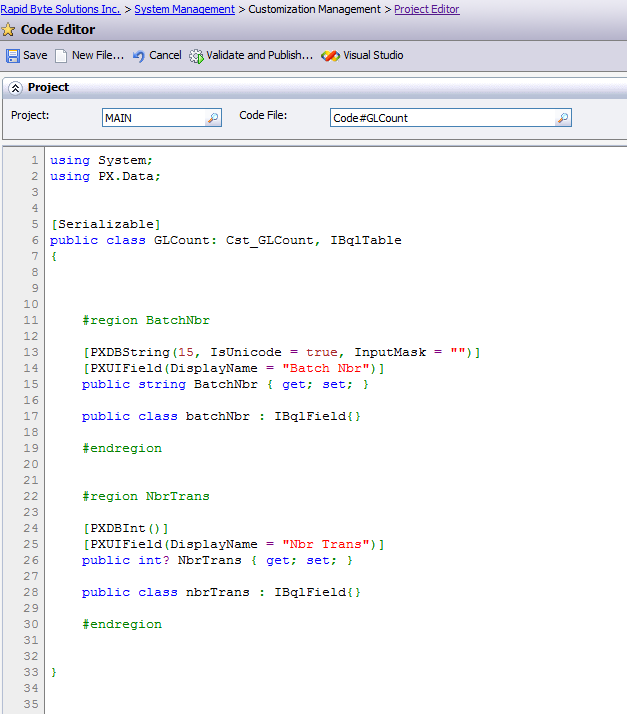
After amendments the file should look like this:


Once all saved, have to publish the customization. It can be done via Project List screen.


3. Now we can amend our report. Before changes Batch Register report looks like below:


I get back to parameters and pressed Edit Version to open the report in designer:


 Once you open Report Designer, go to File->Build Schema, login to the database you are working with and here is our newly added View:


Here we go. The rest is just the same we do for standard Tables/DACs.
Set Relations, then add a field to report from our view. Here is what I got at the end:


And just to make sure that it does what it is, lets navigate to that batch with 12 lines:


Cheers,

Sergey.