Showing posts with label Implementation. Show all posts

Tuesday, July 13, 2021

Centralized Period Management feature in Acumatica ERP

 Dear Readers,

Some new features in Financial have such ambiguous naming that needs to  get clarified.

Centralized Period Management feature, that is implemented in the latest versions can be switched on or off at the Feature Set screen:


Not to get tricked by name it has little to do with centralized financials or centralized reporting. 

The only function of it is to synchronize fiscal period closure. Meaning in all Branches/Companies under a dedicated Tenant fiscal period will get closed at the same time if you ticked that option. You can't have say branch A GL period 01-2021 be open while in branch B 01-2021 to get closed.  

Actually, it was always like that before introducing Tenant-Company-Branch hierarchy in Acumatica.
You close period in a tenant, it closes everywhere. 

Now we have an option to close period in branch A but keep it open in branch B.

So if you want it - 'untick' Centralized Period Management feature option.

All the best,

Sergey.


Saturday, July 25, 2020

Removing List as Entry Point feature for Newer Versions

Hi Everyone,

If your clients are not really fond of this "new feature", especially when you open a data entry screen menu item and all of a sudden user is getting 100,500 records into your screen, with all server burden overload attached. We have an option now.

There is a way to switch it off. 

Via user interface it has to be done One by One for all the data entry screens, as shown here:


Note the screen name, open it, then click CUSTOMIZATION -> EDIT GENERIC INQUIRY:


And once opened here is the option you need to amend:


There are two ways of doing it - complete removal of the entry list, then un-tick the option, save, done. OR you can leave entry list there but restrict the initial load to 50 records only. then amend Select Top to 50.

This will guarantee no strain to your server any more.

Now, for those who read it up to here, a bonus, here is a script that will do all this for all screens at once, it works for all implementations, as long as you have not modified the GI manually:

update GIDesign set selecttop = 50 where companyid = 1 and PrimaryScreenIDNew is not null


All the best,

Sergey.

Monday, June 1, 2020

Restricted Use of Control Accounts in Acumatica (2019R2 and up)

Hi Everyone,

Let me share recent Douglas Johnson video on Control Account feature in Acumatica:


Please be warned however, that even though this feature was introduced with option not to choose account as a control account.
It will always check on certain scenarios like Reversing a Bill, whether AP account is marked as control account or not.

It may cause issues if your customization are sensitive to warning messages.

So please take note. However in overall feature is a right one.

Thank you,
Sergey,

Wednesday, November 14, 2018

Adding Links to Notification Emails

Hi Everyone,

There is sometimes a task to add dynamic or static links to system generated Notifications.
Here is how to do it.

1. Add a field to a screen, where your dynamic link will be generated and stored.

URL Field
Adding URL Filed


2. Create a notification Template adding there a link with the content from the field above:

Notification Screen
Referencing a link in the Notification

As a result your notification will get the Link from the field.

Notification with the link
Notification Template with the Link added


All the best,
Sergey.

Tuesday, October 30, 2018

Enabling and Monitoring TLS on Acumatica

Hi Guys,

There is a lot of hoo-ha recently about switching to TLS 1.2....

Well, mainly, the sound comes from Acumatica marketing team and also from some of those  "security advisers", reviewing for us what is secure and what is not.

So, here is the proposed way to enable TLS 1.1 and/or TLS 1.2 on your IIS server.

And also proposing a way to make sure (or monitor) that your dear clients are connecting their browsers using secure protocols.

What we need to do first is to disable insecure protocols and enable secure ones.

Adding TLS 1.1 and/or TLS 1.2 to your server

If you wish to add just TLS 1.2 please download a file and add registry information to your IIS SERVER, here is the example of the file from Rahul Kumar's blog:

TLS 1.2 ONLY

You can also manually create reg file with this content. Please Note that this will also disable some less secure protocols like SSL 2.0, SSL 3.0, TLS 1.0 and TLS 1.1:

Windows Registry Editor Version 5.00

[HKEY_LOCAL_MACHINE\SYSTEM\CurrentControlSet\Control\SecurityProviders\SCHANNEL\Protocols\SSL 2.0\Client]
"DisabledByDefault"=dword:00000000
"Enabled"=dword:00000000

[HKEY_LOCAL_MACHINE\SYSTEM\CurrentControlSet\Control\SecurityProviders\SCHANNEL\Protocols\SSL 2.0\Server]
"DisabledByDefault"=dword:00000000
"Enabled"=dword:00000000

[HKEY_LOCAL_MACHINE\SYSTEM\CurrentControlSet\Control\SecurityProviders\SCHANNEL\Protocols\SSL 3.0\Client]
"DisabledByDefault"=dword:00000000
"Enabled"=dword:00000000

[HKEY_LOCAL_MACHINE\SYSTEM\CurrentControlSet\Control\SecurityProviders\SCHANNEL\Protocols\SSL 3.0\Server]
"DisabledByDefault"=dword:00000000
"Enabled"=dword:00000000

[HKEY_LOCAL_MACHINE\SYSTEM\CurrentControlSet\Control\SecurityProviders\SCHANNEL\Protocols\TLS 1.0\Client]
"DisabledByDefault"=dword:00000000
"Enabled"=dword:00000000

[HKEY_LOCAL_MACHINE\SYSTEM\CurrentControlSet\Control\SecurityProviders\SCHANNEL\Protocols\TLS 1.0\Server]
"DisabledByDefault"=dword:00000000
"Enabled"=dword:00000000

[HKEY_LOCAL_MACHINE\SYSTEM\CurrentControlSet\Control\SecurityProviders\SCHANNEL\Protocols\TLS 1.1\Client]
"DisabledByDefault"=dword:00000000
"Enabled"=dword:00000000

[HKEY_LOCAL_MACHINE\SYSTEM\CurrentControlSet\Control\SecurityProviders\SCHANNEL\Protocols\TLS 1.1\Server]
"DisabledByDefault"=dword:00000000
"Enabled"=dword:00000000

[HKEY_LOCAL_MACHINE\SYSTEM\CurrentControlSet\Control\SecurityProviders\SCHANNEL\Protocols\TLS 1.2\Client]
"DisabledByDefault"=dword:00000000
"Enabled"=dword:00000001

[HKEY_LOCAL_MACHINE\SYSTEM\CurrentControlSet\Control\SecurityProviders\SCHANNEL\Protocols\TLS 1.2\Server]
"DisabledByDefault"=dword:00000000
"Enabled"=dword:00000001

If you wish to leave TLS 1.1 enabled, please use another script instead:

TLS 1.1 and 1.2

Content would be like below, if you prefer to create .reg files manually:

Windows Registry Editor Version 5.00

[HKEY_LOCAL_MACHINE\SYSTEM\CurrentControlSet\Control\SecurityProviders\SCHANNEL\Protocols\SSL 2.0\Client]
"DisabledByDefault"=dword:00000000
"Enabled"=dword:00000000

[HKEY_LOCAL_MACHINE\SYSTEM\CurrentControlSet\Control\SecurityProviders\SCHANNEL\Protocols\SSL 2.0\Server]
"DisabledByDefault"=dword:00000000
"Enabled"=dword:00000000

[HKEY_LOCAL_MACHINE\SYSTEM\CurrentControlSet\Control\SecurityProviders\SCHANNEL\Protocols\SSL 3.0\Client]
"DisabledByDefault"=dword:00000000
"Enabled"=dword:00000000

[HKEY_LOCAL_MACHINE\SYSTEM\CurrentControlSet\Control\SecurityProviders\SCHANNEL\Protocols\SSL 3.0\Server]
"DisabledByDefault"=dword:00000000
"Enabled"=dword:00000000

[HKEY_LOCAL_MACHINE\SYSTEM\CurrentControlSet\Control\SecurityProviders\SCHANNEL\Protocols\TLS 1.0\Client]
"DisabledByDefault"=dword:00000000
"Enabled"=dword:00000000

[HKEY_LOCAL_MACHINE\SYSTEM\CurrentControlSet\Control\SecurityProviders\SCHANNEL\Protocols\TLS 1.0\Server]
"DisabledByDefault"=dword:00000000
"Enabled"=dword:00000000

[HKEY_LOCAL_MACHINE\SYSTEM\CurrentControlSet\Control\SecurityProviders\SCHANNEL\Protocols\TLS 1.1\Client]
"DisabledByDefault"=dword:00000000
"Enabled"=dword:00000001

[HKEY_LOCAL_MACHINE\SYSTEM\CurrentControlSet\Control\SecurityProviders\SCHANNEL\Protocols\TLS 1.1\Server]
"DisabledByDefault"=dword:00000000
"Enabled"=dword:00000001

[HKEY_LOCAL_MACHINE\SYSTEM\CurrentControlSet\Control\SecurityProviders\SCHANNEL\Protocols\TLS 1.2\Client]
"DisabledByDefault"=dword:00000000
"Enabled"=dword:00000001

[HKEY_LOCAL_MACHINE\SYSTEM\CurrentControlSet\Control\SecurityProviders\SCHANNEL\Protocols\TLS 1.2\Server]
"DisabledByDefault"=dword:00000000
"Enabled"=dword:00000001

After registry is updated please restart your server.

There could be an issue with FIPS enabled in your system, if .NET throws an error that:

"This implementation is not part of the Windows Platform FIPS validated cryptographic algorithms."

All you need to do is to disable FIPS under Local Security Policies.

Disabling FIPS under Local Security Policies

1. Open Control Panel, click Administrative Tools, and then double-click Local Security Policy.
2. Under Local Security Settings, expand Local Policies, and then click Security Options.
3. Under Policy in the right pane, double-click System cryptography: Use FIPS compliant algorithms for encryption, hashing, and signing, and then click Disabled.
4. Run gpupdate /force

Monitoring the client communications protocol

This is the best part actually. After you enabled TLS 1.2 it is time to show the auditors that you are compliant 100% with what is called security. Today. So we may have IE, FireFox and Chrome. 

Check the security protocol used on Internet Explorer

First you need to connect to your Acumatica using IE. I am demonstrating customer who is using Acumatica version 3.0. And, yes, 3.0 also supports TLS 1.2. Please note it should be HTTPS protocol of course:

https protocol acumatica tls 1.2

Secondly, right click on the header of the screen (do not right click on grid!) and you will see a choice drop down. Click Properties:

TLS Version


Third, check the Connection. 

Connection Properties


Check the security protocol used on FireFox

Login, Click on (i) option, list to second page, enjoy

TLS Firefox


Click on this arrow > and you will see option then click More Information

More Information

Then you will see detailed info

Firefox TLS


Check Security protocols used on Google Chrome

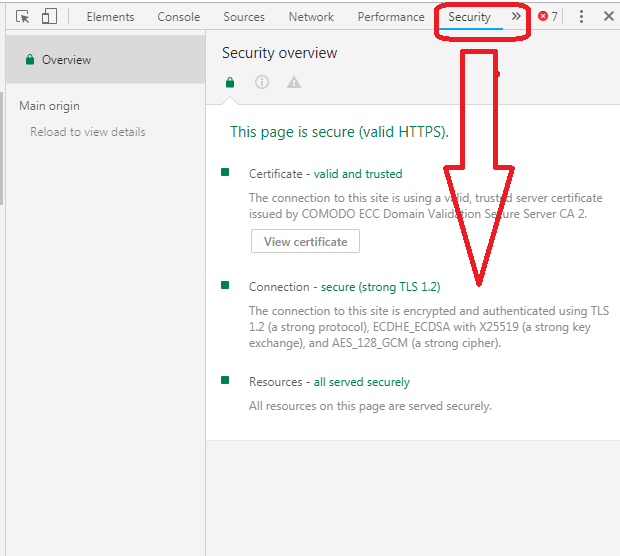
Here you need to press F12 and then choose Security option:

TLS Options


 All the best,

Sergey.

Tuesday, April 17, 2018

The Learning Lab - Acumatica Customer of the Year

Dear Reader!

I am Proud to announce:

The biggest Private Primary and Secondary Learning Provider in Singapore - The Learning Lab just achieved the Customer of the Year award at Acumatica Asia Roadshow 2018 !

Super Powerfull Team of Professionals

Together with Info Cloud Asia - leading consulting firm in Singapore, TLL achieved flawless implementation and integrated Acumatica with the CRM front end, Attendance Tracking Security system as well as Claim Tracking.

Congratulations - it was an example of great team work!

All the best!

Friday, August 7, 2015

Urgently Require Acumatica Consultant and Support Engineer in Singapore

Hi Guys,

Please let me know if anyone from Singapore is keen to work as a consultant and support engineer.

Location: Singapore

I am really shorthanded and looking for a bright candidate. Please drop me an e-mail if interested.

Thanks,

Sergey.

P.S. Agents/Hiring Agencies please do not bother, I am looking for direct candidates.

Monday, June 8, 2015

Sending Mail Issues. SMTP server configuration.

Hi Everyone,

For those using Send Mail functionality in Acumatica, there is almost always a problem with SMTP servers, they may not process your e-mail due to certain conditions are not met.

For example, you may have Office 365 account and willing to add it to Acumatica as a system E-Mail account.

There will be an issue when other persons start sending mails from Acumatica, as Office 365 server require Sender to be exactly your account name or at least a person from your domain.

There could also be a case when you set up Acumatica in your internal domain, and are not willing to expose / connect it directly to a public mail server.

Easiest way to avoid these problems is to install an SMTP Relay server at your office. Well this is not really a hardware box server, just a piece of software running on one of your machines, it could even run on Acumatica server itself, as it does not depend on anything, well at least we don't want it to.

So I was looking for a good candidate for SMTP relay with some "alter" functions on the outgoing e-mails and found this software:  EMailRelay Software

This is not just open source, freeware, SMTP relay. It is also a Message Transfer Agent. Meaning it can change the Envelope of your E-Mail, it can also change the content of the Header or Body of your E-mail.

This is perfectly what we need - to alter "From:" address, in case of Office 365 usage.

Also this software can work as a server. I will not go deep into installation procedures, it is simple enough, just download correct version (32 or 64 bit) then unpack it, run the configurator, it will guide you through simple steps. Put Office 365 Server as a relay server. Make sure port 25 is open for incoming E-Mails. You can also configure it as a service, to run when you log off from the machine.

Now, the most interesting part, altering the body of the message and envelope.

Software comes with 4 examples in JavaScript, that you can use.
What it does: when message is received from Acumatica, but not yet relayed to Office 365 SMTP, there is an option - to run Java Script and alter the content of the E-Mail.

What I have done in my script file, you can make your own file by the way:


Please make sure you added a call into a BAT file that system created for SMTP relay, to invoke these alterations. --filter parameter.


Happy mailing!

All the best,
Sergey.

Monday, October 13, 2014

Configuring Affinity Mask at IIS Server. Acumatica CPU Licensing.

Dear Partners,

There were many questions recently on how to properly configure the server to match the license purchased from Acumatica.

Under our VAR agreement, the partner is responsible for proper server configuration. Such if customer bought 4 CPU cores, there must only be 4 CPU cores allocated for the Acumatica on IIS server Application Pool. This is not just a legal requirement, that is stated in our product EULA, this is a subject for Acumatica support eligibility and overall stability of the system. 

To address this important question we should keep in mind:

A. Acumatica License Version

B.A. Acumatica Edition (Departmental 2CPU, Divisional 4CPU or Enterprise 8CPU) for versions prior Acumatica 4 
OR
B.B. Acumatica License Size (S 2CPU, M 4CPU, L 8CPU, XL 16CPU)

C. Number of actual CPU cores at your IIS server

Lets assume few scenarios: 

Scenario 1. Your IIS server is sitting on the same hardware box with the SQL server. Total number of CPU cores at the hardware machine is 8 (Eight). License purchased from Acumatica is Perpetual Departmental, meaning you got license for 2 CPUs only. How should we configure the server?

Vital configuration part in this scenario will be to allocate TWO out of EIGHT CPU cores for Acumatica Application Pool. CPU cores are counted from 0 to 7. So lets allocate Core 7 and Core 6 for Acumatica instance. Mask to cover this scenario should be 11000000 in a binary notation or 192 in decimal. All we have to do to stay on a legal ground and to get support from Acumatica and not to risk loose our license is:

Call up IIS Manager from the Main Panel

 Find what is the Application Pool Name for our Acumatica Web Site


Now we should change the Mask settings for that Application Pool


After you choose Advanced Settings for the pool, please modify these settings according to our mask choice


Scenario 2. Your IIS server has 4 CPU cores, and you have purchased the license from Acumatica for M size, which is 4 CPU cores.

No configuration is necessary on the server as number of CPU cores purchased and available on the server matches.

Please note Scenario 2 is the easiest for the End User to provide assurance that there is no license violations or misuse.

All the best,

Sergey.

Tuesday, July 29, 2014

Scheduling an Import Process

Hi Guys,


Here is how you can put your Integration with say POS system on schedule in our Import Scenarios process.


First of all, I assume you already created an Import Scenario and tested it with the file uploaded to the Acumatica.


Secondly, you have to ensure that the source file is placed inside Acumatica on time.


Third thing, and that is what I am to explain, we have to schedule a process, inside Acumatica, that will take the file from above. Get the data out of it, and then insert these data into Acumatica screens.


A. Open Import Scenarios process.


B. Select the Import Scenario(s) we need to schedule for execution and select the Action. Save It.


 C. Use the Schedule Button to create a schedule.


 D. Give it a Name and schedule options.


E. Finally you can specify some conditions, on when exactly trigger the scheduled import.


F. Save and Close the Automation Schedules screen.

Well if you wish to review the parameters, at any time just click View from Schedule button, it will bring you to the Automation Schedules screen again.

All the best,

Sergey.

Thursday, July 10, 2014

What is our Project Success Rate?

Hi Everyone,

Just heard some of the competition ERP vendors being sued by customers, this is of course very bad sign.
This leads to the question about Right's or Wrong's in a sales strategy, not just in product itself. For example. Over-promising will always lead to a low project success rate. Hiring wrong partners - the same. Using doubtful sales strategies (bulk sales, sales in advance etc.) will cause partners to become unhappy as well, by pushing them to sale more and implement worse.

So what is all about? Is it applicable to Acumatica? I would not use marketing BS here, just wanted to share my experience from partner meetings.

Being in Philippines with our partners. And now I wanted to share the Success Rate for implementation projects in ERP industry. There were reports suggesting that it is very low in the industry, overall.
Some people say it is as low as 50%
Chaos Report

NOT FOR ACUMATICA :)

Surprisingly what I found from Acumatica partners, success in our product implementation is much higher.
For some partners it is constant at stuggering 100%. Example Global Ideology Corporation.
3 years on the market, 6 finished projects, 100% success rate.
Average implementation cycle: 2 month.


So I would love to hear from you guys, being a partner, what is your Customer Happiness index, or Project Success Rate. In a very simple scale. Customer is happy or customer is not.
Just do a simple analysis, compare products if you sell competition.

All the best,
Sergey.

Thursday, June 12, 2014

SQL2014 Compatibility and Editions

Hi All,

There was a question from our partners, whether Acumatica supports SQL2014.
Answer is YES.

Below are screenshots I made from Windows 2012 R2 server with SQL 2014 Express.

Take note on version of SQL


Here is the naming, we can use Named instances of SQL

Here is how it looks using SQL2014

And reports are fine as well

One more thing, people asking if Express is ok. Yes it works, below I put some restrictions for SQL2014 Editions. So please choose if DB less than 10GB then Express is fine. As well as it limits SQL RAM by 1G only.


Cheers,
Sergey.

Wednesday, June 4, 2014

Adding Field (Selector) with Exotic Attributes (Project, Customer etc.)

Hi Everyone,

Goal for today: reuse attributes of the Acumatica fields.

I am sure most of you when tried to add a new field to Acumatica, was thinking about reusing the selector from an existing fields.

For example, in a screen for RQ Request I would like to add Project ID field.
I know that this field is used in GL Journal Transaction details also in AR Invoice header screen and many other places.

There is one issue, however...

When i look at the Attributes of this field, I found scribblings that impossible to understand and therefore reuse:


This attribute is hardcoded somewhere in Acumatica, and is very hard to understand what is inside this ActiveProjectForModule...

Well, it was a problem till version 4.2. Before the browser did not display special source code.
But now, in Acumatica 4.2 onward, I can find what is behind this sacred code and reuse it the way I want.

Let me show the place where you can search for the code.

Navigate to your web site then App_Data\Code Repository\PX.Objects\PM\Descriptor\
Here we have a file Attribute.cs lets open it and find what we want, basically search for ActiveProjectForModule:


You may see, there are 4 constructor elements inside this class. Choose the best appropriate, I would take simplest one: ActiveProjectForModuleAttribute(string module)

Lets use this attribute for the newly added control at the requisition module:

1. I do not need to default anything.
2. [PM.ActiveProjectForModule(PX.Objects.GL.BatchModule.AR)] will be the attribute.

Why PX.Objects.GL. need to be added in forn - is due to Attributes are not in the main graph form and need to be declared directly.
So we have a single parameter left from the original AR Screen attribute.


And result here we are:


All the best,

Sergey.

Tuesday, May 27, 2014

SaaS Related Questions. Database Growth Rate.

Hi Guys,

We've got a nice resource, SaaS FAQ, on our web site. Thanks to Marketing and Support team!
It answers most of the questions about how do we provision services, how do we backup, where do we store, etc.

SaaS FAQ on Acumatica Web Site

Another thing, if you experience the service disruption, we have emergency channel to report for it via web portal here:

Service Outage Report

Finally, as our price list includes Service section, please do not hesitate to visit this page for Acumatica Provisioned Services

Services from Acumatica

We also have a document, explaining the DB growth depending on different modules transactions amount.
I would like to copy it here:


Please note, this report does not put into consideration amount of Entities, like for example Fixed Assets.
I am going to stress, number of entities is important only if its significant, say more than tens of thousands.
If we take Fixed Assets module, the size of the tables associated with Assets depends on
A. Asset Useful Life in Month.
B. Number of assets.

So if our assets are in average live for 5 years = 60 month, and we have 10,000 of assets. Then multiplication will tell the actual number of sizable records in the system = 600,000 historical records.
If we purchase 1,000 assets yearly. Add 60,000 historical records every year.

Based on real life example, each asset consumes around 50kB space in the DB. So to speak, 20,000 of assets will grow your database by 1 GB. Its a one time growth, but you need to account for it.

Other modules like Inventory or Accounts Receivable are not so sensitive to number of Entities, unless there is a really big number of them.

All the best,

Sergey.

Saturday, May 24, 2014

Quick Logout. Managing Toolbar Buttons.

Hi Everyone,

For those of you having more than 10-20 companies in your Acumatica ERP instance, when trying to log out for the system, user should scroll down to LogOut Button.

Same to access User profile or Favorites. Please find below the standard positioning of the Log out and Companies. If we have 3 companies - it is not an issue, but when list grows - it becomes very unpleasant for the user every time scroll down to Log Out button to quit. As a result, number of open sessions grows, server slows down.

 We can swap Companies Section and Log Out/Favorites/Profile by modifying Main.aspx.cs file in the root of Acumatica WEB site. Please navigate to the root first:


Now lets open this file and modify the content:

Before Modification

After Modification

After file saved please restart IIS. Then result will be like below:


Now 2 clicks -> User logged Out, no scrolling is needed.

All the best,
Sergey.

Friday, May 16, 2014

Securing the Branch Access

Hi Guys,

Quick post, when it comes to multiple branches sitting inside single database of your Acumatica instance, we may need to assign login and access rights to different users to see different branches.

So this is about tenancy that we have inside Acumatica. We can have multiple companies, or tenants, and this will be a topic for another article, and inside each tenant I can create multiple Branches. These branches, or related companies, will share same COA, same customers/vendors etc. But, important note, we can report everything separately, including VAT tax. So this is important feature for those running multiple company business under one roof.

So how to secure access to each branch for certain people only. Very simple:

1. Create Roles with somewhat resembling branch name or code. These security roles will be only used for branch access control.


2. Add users to that Role, the only users who need access to South branch in my example.


3. And the last step, specify this role at the Branch maintenance screen.


All access will be set automatically by the Acumatica, based on the above settings.

Best,

Sergey.

Monday, May 5, 2014

Access to SQL Server by SQL Query Analyzer or Management Studio.

Hi Everyone,

As Acumatica runs on SQL server, we may need, time to time to access our Database by Management Studio. And there could be connectivity issue if we try it, just out of the box...

Most of the times, since we are on the cloud, the SQL server is somewhere outside, not in our office. To access it, we need to follow three simple steps:

1. Open up firewall on SQL server side for the port used by SQL Server for listening.
2. Make sure we specified correct port on the SQL server properties.
3. Make sure on the CLIENT side we choose the same port to access the server.

First.

Open the firewall for SQL port 1433 for Inbound Connections. This need to be done AT THE SERVER SIDE. So please Remote to the server then open this up:


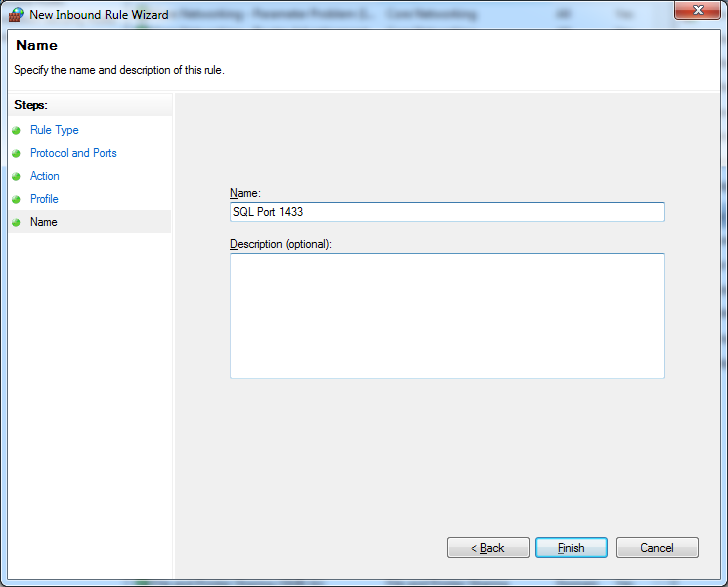
Click at the Inbound Rules, Add new rule, specify that it is for the PORT type of the rule. Then add TCP port 1433 to it.
Well next you choose network profile from where you allow to open it up. Most of the time Domain is enough.

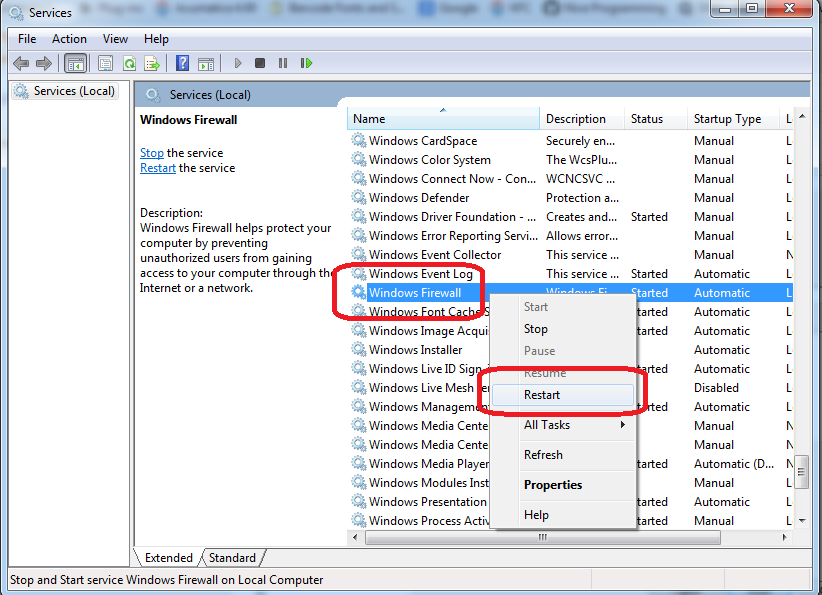
You may need to restart Firewall Service on the server for the rule to take force.


Second. 

Let's open the port for listening at the SQL server side. Here is the hint, if we use NAMED INSTANCE for the SQL server, port on SQL side will be assigned DYNAMICALLY, which is obviously NOT what we want. We have to fix it to be STATIC. Most of the times, historically, we used 1433 port. So let it be 1433 for my example. It is done Here:


Next would be to press right click on TCP/IP protocol, choose properties, then you will see list of IPs.
Scroll down to IPAll or choose the one that your server is configured and:
A. Erase the entry at the Dynamic Port
B. Place 1433 at the TCP Port field
Result:
Click Apply. Then Restart the SQL server.

Third.

Funny thing but this seems to be the most important step. On the client side, when you call SQL Management Studio, please use the following syntax. You NEED to indicate the port at the server IP address :) :


Please take note on that comma port number :)
The thing is, even if you indicated the dynamic off on the SQL, client still thinks its own ways when talking to the SQL server.

All the best,

Sergey.